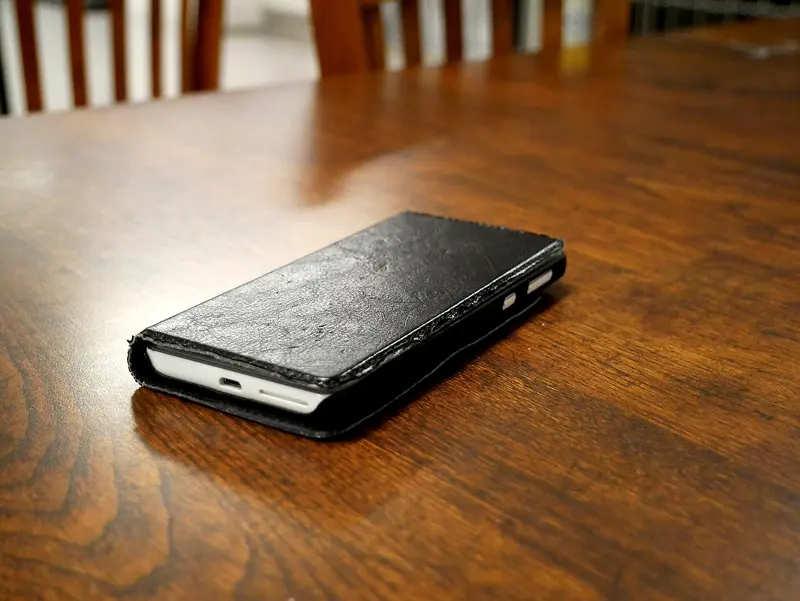
Christmas parties, busy shops and late trains are all good places to lose a phone. And because your phone is what you use to find your keys and bag, losing it is worse than losing anything else. Here is what to do, step by step, based on Apple's and Google's help pages.
First: is it lost or stolen?
If you've simply left it somewhere, the steps below will usually get it back. If you think it was taken from you, or you see it moving away on the map, treat it as a theft: secure it, report it, and don't go after it yourself. GOV.UK says to call 999 if you or someone else is in immediate danger or the crime is in progress, and otherwise to call 101 or report it online to your local police.
iPhone: Find My
Use Find My on another Apple device, or sign in at iCloud.com from any computer or borrowed phone. Apple's help page covers three things:
- Find it. See it on the map. If it's nearby, play a sound; on supported iPhones, Find Nearby shows direction and distance.
- Mark it as lost. Apple says turning on Lost Mode "locks it with a passcode or your Apple Account password". On devices that use Apple Pay, it suspends payment cards and passes, and you can show a message with contact details for whoever finds it.
- Erase it if you believe it's "permanently lost or stolen". Apple warns: "Erasing your device can't be undone."
Apple describes the Find My network as crowdsourced: "It's all anonymous and encrypted to protect everyone's privacy."
Android: Find Hub
Use the Find Hub app on another Android device, or go to google.com/android/find in a browser and sign in. Google's help page explains:
- Find it. The phone gets a notification and you see its location on a map. If the current location isn't available, "you may still find its last known location, if available". Find nearby works within about 10 metres.
- Play sound. This "Rings your device at full volume for five minutes, even if it's set to silent or vibrate."
- Mark as lost (secure the device). This locks it with its PIN, pattern or password, and you can add a message and contact details for the lock screen.
- Factory reset. Google says these steps "permanently delete all data on your device, but may not delete SD cards", and that after a reset the device no longer appears in Find Hub.
To lock or erase remotely, Google says the phone must have power, be connected to mobile data or Wi-Fi, be signed in to a Google Account and have Find Hub turned on. If you can't find it, Google suggests securing your Google Account. It also says your mobile network can use the phone's IMEI number to disable it; you can find the IMEI in settings or in Find Hub.
The order that usually makes sense
- Locate it from another device.
- If it's nearby and safe, play a sound.
- If not, mark it as lost straight away. This protects your data and payments and puts your contact details on the screen.
- If you think it was stolen, report it to the police and contact your mobile network.
- If you think someone may get into your accounts, contact your bank and consider changing important passwords, starting with your email.
- Erase only when you've given up on getting it back — Google says a reset phone no longer appears in Find Hub.
Get ready before it happens
- Make sure Find My or Find Hub is turned on now, while you have the phone.
- Learn your Apple Account or Google Account password, so you can sign in from someone else's device.
- Note your IMEI somewhere safe.
- A tracker on your keys and bag won't help if the phone that finds them is lost. Consider sharing important items with a family member — see sharing a tracker.
If it turns out you only lost it at home, see our post on finding your phone at home.
Sources
- Apple Support: Find a lost Apple device or AirTag, mark it as lost or erase it (1 October 2026)
- Google Android Help: Find, lock or erase a lost Android device
- GOV.UK: Report a crime
Checked 23 November 2026.
This article is general information, not legal, safety or insurance advice for your situation. If you are in danger, call 999.