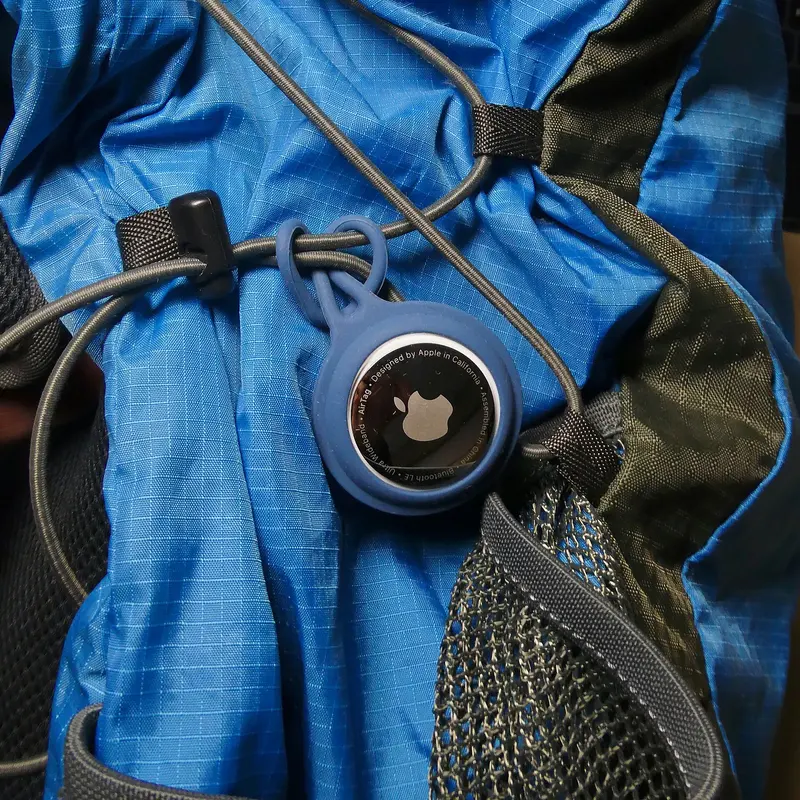
Office parties, late trains, Christmas shopping and a night at the in-laws': December is when keys, wallets and bags get left behind. Most trackers can do more than show where something is after you have lost it. A left-behind alert (Apple calls it a separation alert) warns your phone as you walk away, which is often the difference between going back to the table and ringing the venue the next morning.
It takes a couple of minutes per tracker, and it is worth doing before the party season starts.
AirTag and other Find My items (iPhone)
Apple's iPhone User Guide says you receive an alert every time the device sharing your location separates from the item. To turn it on:
- Make sure notifications are allowed for the Find My app.
- In Find My, tap Items, then the item.
- Tap When Left Behind and turn on Notify When Left Behind.
- If you like, add a Trusted Location: a place where you can leave the item without an alert. Choose a suggested location, or tap New Location and pick it on the map.
Find Hub tags (Android)
Google's Android Help describes left-behind notifications for compatible locator tags. Bluetooth and location need to be on, and Find Hub needs permission to send notifications. Then:
- Open the Find Hub app and select the tagged item.
- Next to the item's name, open the device details.
- Turn on Notify when left behind.
- To stop alerts at a particular place, select Add location and enter the address.
Three details from Google worth knowing:
- If your Google Account has a home address set, you won't get left-behind alerts there by default. You can remove that exception if you want alerts at home too.
- Notifications go to one Android device at a time.
- Only the owner of the item gets left-behind alerts. People the tag is shared with don't.
Tile
On Tile trackers, left-behind alerts are one of the extras of the optional Tile Premium subscription, as our Tile product pages note. You don't need Premium to find a Tile with the free app.
Galaxy SmartTag2
Samsung's UK support pages we checked describe finding a SmartTag2 on the map and Lost Mode, but don't describe a left-behind alert, so look in the tag's settings in the SmartThings app before you rely on one.
Trusted places for the holidays
Safe places stop your phone nagging you, but each one is a place where you won't be warned:
- Add home, so you aren't alerted every time you put your keys down.
- Think twice before adding anywhere else. If you are staying with family over Christmas, you might add their address for those few days, and remove it when you leave.
- Don't add the office, the pub or the party venue. That is exactly where you want the alert.
What an alert can't do
A left-behind alert is a reminder, not a lock. It depends on your phone: if Bluetooth or location is off, or notifications are blocked, it can't warn you. And on Find Hub only the owner gets the alert, so on a shared family tag the person carrying the keys may not be the one who is warned.
If you do lose something, our posts on Find Nearby, Play Sound and the map and getting a bag back from lost property cover the next steps.
Trackers on the site for three of these networks (Find My, Find Hub and Tile):
-
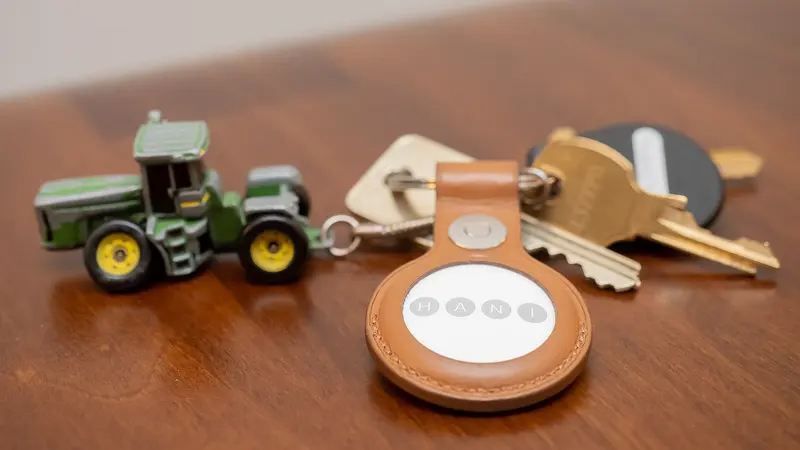 Photo: ajay_suresh, CC BY 2.0
Apple AirTag (2nd generation)
Apple · January 2026
- Phones
- iPhone
- Battery
- CR2032 coin cell
- Lasts
- More than a year
- Water
- IP67
-
Motorola moto tag 2
Motorola · January 2026
- Phones
- Android
- Battery
- CR2032 coin cell
- Lasts
- More than 600 days
- Water
- IP68
-
Tile (formerly Tile Mate, 2024)
Tile · September 2024
- Phones
- iPhone & Android
- Battery
- Built-in, not rechargeable
- Lasts
- Up to 3 years
- Water
- IP68
Product pages link to Amazon.co.uk with affiliate links. As an Amazon Associate I earn from qualifying purchases.
Sources
- Apple iPhone User Guide — separation alerts (Notify When Left Behind)
- Android Help — be ready to find a lost Android device (locator tags, left-behind notifications)
Checked 23 November 2026.
This article is general information, not legal, safety or insurance advice for your situation. If you are in danger, call 999.