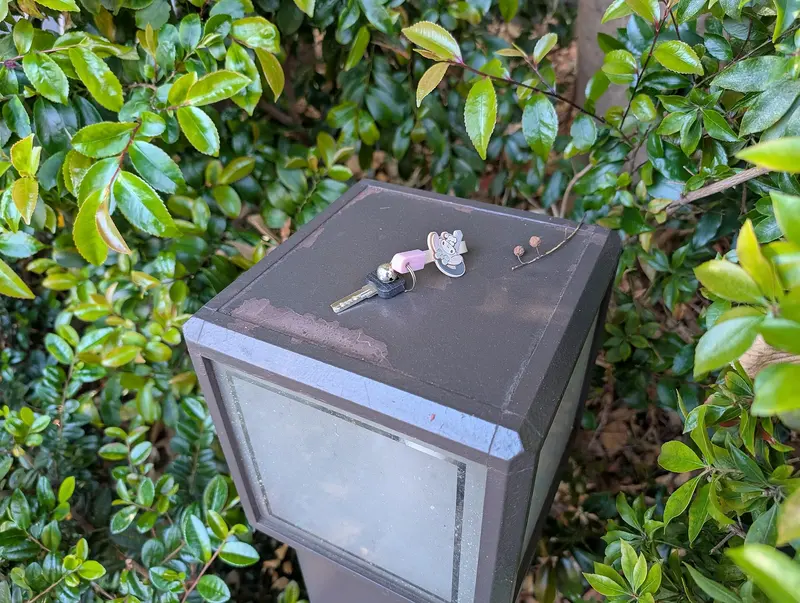
Most lost keys turn up within a few metres of where the map says they are. The hard part is the last few metres: down the side of a sofa, in a coat in the hall, in a bag in the boot. Here is how the finding tools work, using what Apple and Google say in their own help pages.
The map: where it was last seen
A Bluetooth tracker has no GPS. Its location on the map is where a phone on the network last detected it, as our guide to how Find My and Find Hub work explains. So the map shows "last seen here, at this time", not "it is here now".
Apple's help page says Find My shows a device's last known location for up to seven days, after which it shows "No location found". If the time stamp on the map is hours old, the item may have moved since.
Play Sound: the quickest check at home
If the map says the item is at home, start with a sound. Apple's help page explains you can tap Play Sound to hear chimes from the AirTag. Apple says the AirTag (2nd generation) speaker is "50 percent louder than the previous generation", so you can hear it from up to twice as far away.
Sounds work over Bluetooth, so you need to be in range. Turn the TV off, open doors between rooms, and walk slowly round the house while it plays.
Precision Finding: arrows on the screen
With an AirTag and a supported iPhone, Find Nearby uses Precision Finding to point you towards the item with on-screen directions, and Apple says the iPhone vibrates as you get closer. It relies on Ultra Wideband (UWB). Apple's help page says Find Nearby works on "iPhone 15 and later", and its AirTag (2nd generation) specs say the new tag's Precision Finding works with iPhone Air and iPhone 15 or later, except iPhone 16e. Apple says the 2nd-generation AirTag can guide you from up to 50 percent farther away than the previous one.
A few things help:
- Precise Location must be on. Apple says that if the Find button is missing, check that Location Services and Find My have access, and that Precise Location gives the most accurate results.
- Walls and objects get in the way. Apple notes that walls or objects between your iPhone and AirTag may affect performance. If the arrow wanders, move to a different room and try again.
- Software matters. Apple says the AirTag (2nd generation) needs iOS 26.2.1 or later.
Other trackers have their own finding features. Our compare page shows which trackers have UWB, and the trackers list can be filtered for it.
-
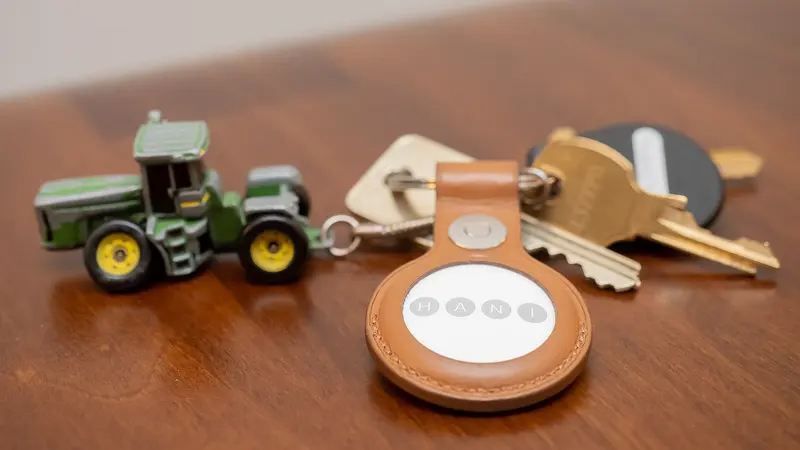 Photo: ajay_suresh, CC BY 2.0
Apple AirTag (2nd generation)
Apple · January 2026
- Phones
- iPhone
- Battery
- CR2032 coin cell
- Lasts
- More than a year
- Water
- IP67
-
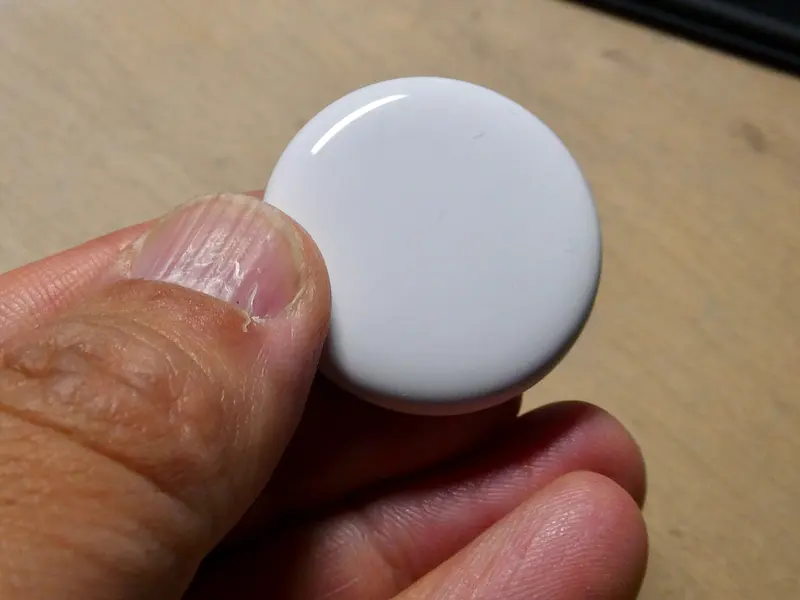 Photo: KKPCW, CC BY-SA 4.0
Apple AirTag (1st generation)
Apple · April 2021
- Phones
- iPhone
- Battery
- CR2032 coin cell
- Lasts
- Over a year with everyday use
- Water
- IP67
-
Chipolo POP
Chipolo · April 2025
- Phones
- iPhone & Android
- Battery
- CR2032 coin cell
- Lasts
- Up to 1 year
- Water
- IP55
Product pages link to Amazon.co.uk with affiliate links. As an Amazon Associate I earn from qualifying purchases.
When the item isn't at home
If the map shows somewhere else:
- Check the time stamp. A recent location is worth acting on; an old one less so.
- Get directions from the app, then use Play Sound or Find Nearby when you get close.
- Mark it as lost if you can't get to it. Apple's help page explains that Lost Mode or Show Contact Info lets someone who finds it reach you. Our guide to trackers for keys and wallets covers this step.
Sharing a temporary location link
If your bag is with an airline, a coach company or a venue's lost property, you can share where it is without sharing your account.
- Apple Find Lost Item. Apple says the owner creates a Share Item Location link in Find My, and recipients need an Apple Account or must be a registered Apple Partner such as an airline. The link expires after seven days, or sooner if you are reunited with the item or stop sharing. Apple says Find Lost Item "is not available in all countries and regions".
- Google Find Hub. Google says that when a tag isn't nearby you can create a web link to share, for example with an airline. The link expires after seven days and sharing stops automatically if you recover the item.
Google's privacy page adds that anyone who opens a Find Hub link while signed in to a Google Account can see the location, so share it only with the people who need it.
No location at all?
If an item never appears on the map, check its battery (see our post on tracker batteries in cold weather), check it is still on your account, and remember that in a quiet place with few phones around, it may simply not have been detected yet.
Sources
- Apple Support: Use AirTag and Find My to keep track of your personal items
- Apple Support: Use Find My to locate your lost Apple device or AirTag
- Apple Support: AirTag (2nd generation) tech specs
- Apple Newsroom: Apple introduces new AirTag with expanded range and improved findability
- Apple Support: How to use Find Lost Item
- Google Android Help: Share and manage devices with Find Hub
- Google Help: How Find Hub protects your data
This article is general information, not legal, safety or insurance advice for your situation. If you are in danger, call 999.