It's on silent, it's somewhere in the house, and you're already late. Over Christmas, with visitors, wrapping paper and extra cushions everywhere, a phone can disappear in seconds. Here are the quickest ways to make it ring, from Apple's and Google's own help pages.
iPhone with an Apple Watch
Apple's Apple Watch User Guide explains the Ping iPhone button:
- Press the side button on your watch to open Control Centre.
- Tap the Ping iPhone button. Your iPhone plays a sound.
- In the dark, touch and hold the button so your iPhone also flashes.
Precision Finding can guide you to it. Apple says it's supported on Apple Watch Series 9, Apple Watch Ultra 2 and iPhone 15 and later (except iPhone 16e and iPhone 17e). When it works, the watch shows a heading and distance, and "When you're close to your iPhone, the watch screen turns green and iPhone pings twice."
If the iPhone is out of the watch's range, Apple suggests using Find My from iCloud.com.
iPhone without a watch
Sign in to iCloud.com on a computer or tablet, or open Find My on another Apple device, and use Play Sound. Apple's help page also mentions Find Nearby, which shows direction and distance on supported iPhones — useful if you're using a family member's phone that can see your device.
Android phone
Go to google.com/android/find in a browser, or open the Find Hub app on another Android device, and sign in. Google says Play sound "Rings your device at full volume for five minutes, even if it's set to silent or vibrate." That makes it one of the best tools for a phone lost down the side of a sofa.
Find nearby shows a shape that narrows as you get closer, and works within about 10 metres. If you wear a Wear OS watch, Google's help also links to a guide to finding your phone with your watch.
If the battery has died
A phone with a flat battery can't ring. Google's help says that to secure or erase a phone remotely it must have power and a connection, and that if its current location can't be found "you may still find its last known location, if available". So check the map first: the last known location tells you which room, car or bag to search, and then it's a matter of looking. Once it's charging again, try Play Sound.
Habits that help
- Know your password. Ringing a phone from a browser means signing in to your Apple Account or Google Account. If you only ever sign in on the phone itself, practise once on a computer.
- Leave Find My or Find Hub switched on. It's what all of the above relies on.
- Give the phone a home. A charging spot by the door or in the kitchen means fewer searches. The same goes for keys — see trackers for keys and wallets.
- Try it once before you need it. Ring the phone from another room so you know what to listen for.
Find your keys from the phone, too
Once you've found the phone, it can do the same job for everything else. An item tracker on your keys, bag or wallet lets you play a sound from the app or follow Find Nearby. Our post on Find Nearby, Play Sound and the map explains how they work, and the which tracker tool helps you choose one that works with your phone.
-
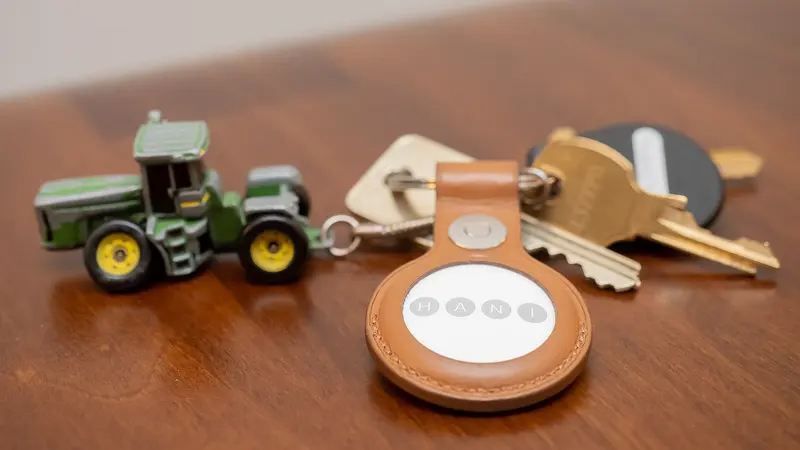 Photo: ajay_suresh, CC BY 2.0
Apple AirTag (2nd generation)
Apple · January 2026
- Phones
- iPhone
- Battery
- CR2032 coin cell
- Lasts
- More than a year
- Water
- IP67
-
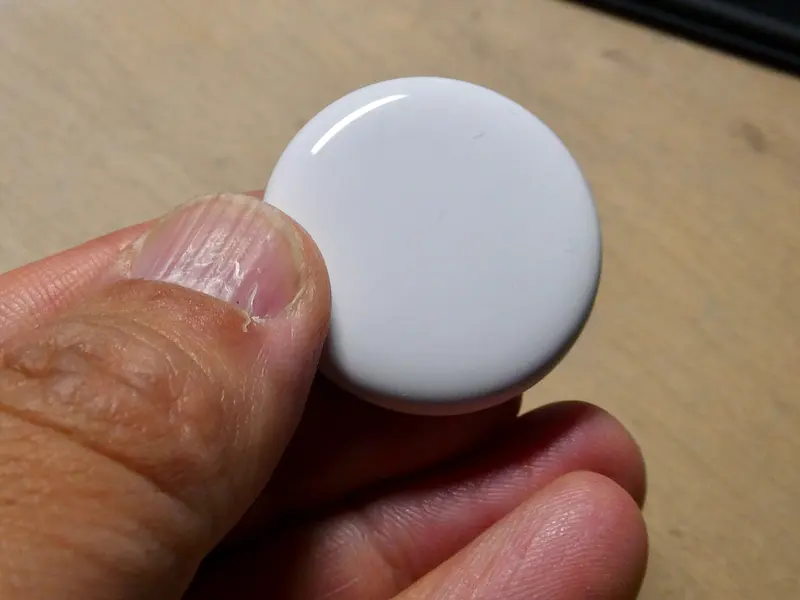 Photo: KKPCW, CC BY-SA 4.0
Apple AirTag (1st generation)
Apple · April 2021
- Phones
- iPhone
- Battery
- CR2032 coin cell
- Lasts
- Over a year with everyday use
- Water
- IP67
-
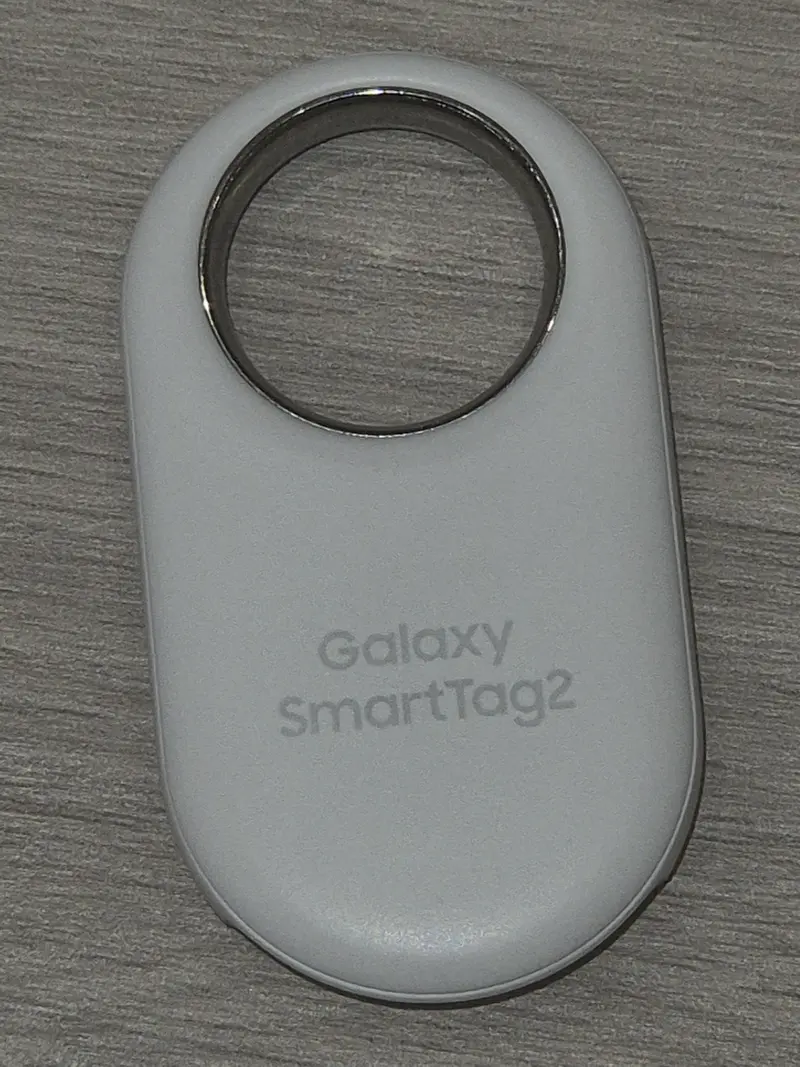 Photo: ItzANormalFioko, CC BY-SA 4.0
Samsung Galaxy SmartTag2
Samsung · October 2023
- Phones
- Samsung Galaxy
- Battery
- CR2032 coin cell
- Lasts
- Up to 500 days
- Water
- IP67
Product pages link to Amazon.co.uk with affiliate links. As an Amazon Associate I earn from qualifying purchases.
If it isn't in the house
If ringing it doesn't help and the map shows it somewhere else — or you think it's been stolen — see lost or stolen phone: find it, lock it, and report it. Mark it as lost quickly, so your data and payments are protected while you look.
Sources
- Apple Support: Ping your iPhone (Apple Watch User Guide)
- Google Android Help: Find, lock or erase a lost Android device
- Apple Support: Find a lost Apple device or AirTag (1 October 2026)
Checked 23 November 2026.
This article is general information, not legal, safety or insurance advice for your situation. If you are in danger, call 999.