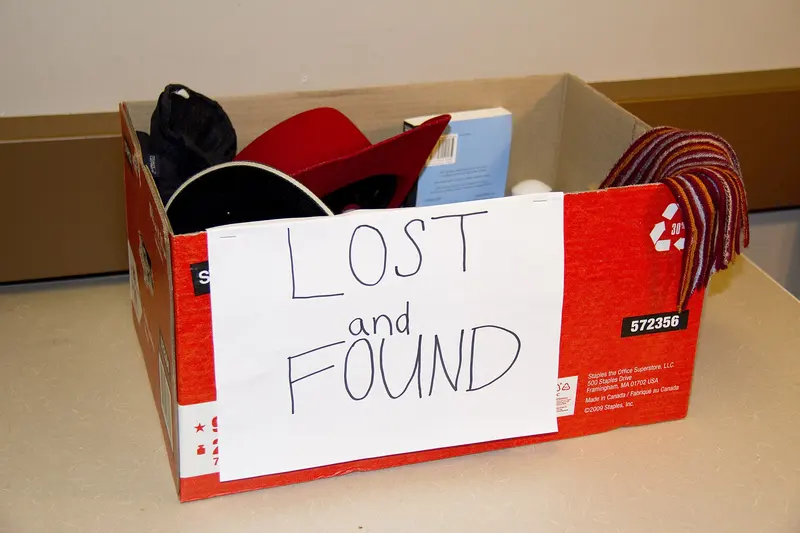
Christmas journeys are busy, and busy journeys are when things get left behind: a bag of presents on the luggage rack, a coat on a coach seat, keys down the side of a taxi seat. If the missing thing has a tracker on it, you have a better chance of getting it back. Here is what to do, in order, and what a tracker can and can't do for you.
1. Look at the map first
Open the app the tracker belongs to: Find My on an iPhone, Find Hub on Android, SmartThings for a Galaxy SmartTag2, or the Tile app. The map shows where the tracker was last reported.
Remember how a Bluetooth tracker works. It doesn't have its own GPS or mobile signal: its location updates when a phone on the same network passes nearby. On a busy train that can be often; once the bag is in a quiet lost-property store, the location may not change for a while. Our post on Find Nearby, Play Sound and the map explains what the map is telling you.
2. Mark it as lost
Each network has a lost setting that helps a stranger who finds the item get in touch with you:
- AirTag and other Find My items: in the Find My app, open the item and turn on Lost Mode (Show Contact Info). Apple says you can add a message with your phone number or email address, and someone who finds the item can use a supported device to see a web page with that message.
- Galaxy SmartTag2: Samsung says that in Lost Mode the tag's NFC shows your contact details and message on the finder's phone, whatever make it is. The details have to be registered in the SmartThings app beforehand, and the finder's phone needs to read NFC and be online.
- Find Hub and Tile tags: check the lost settings in the app; options depend on the tag.
Our guide to finding an item with a tracker on shows the same process from the finder's side.
3. Contact lost property
Ring or use the online form of whoever carried you: the train company that ran the service, the coach or bus operator, the taxi firm, or the venue. Give them:
- the date, the route and roughly where you were sitting;
- a description of the item and of the tracker on it (colour, holder, key ring);
- where the tracker last showed on the map, in plain words, for example "a depot near the end of the line, since 9pm".
Sharing the location
Both Apple and Google let you create a temporary link to a lost item's location, but they are designed for particular people:
- Apple Share Item Location: Apple says the link shows the approximate location of a lost AirTag or Find My accessory, and helps others locate it on your behalf, such as friends or family with an Apple Account, or Apple Partners such as registered airlines. It needs iOS 18.2 or later on the owner's iPhone. The link expires after seven days, when you are reunited with the item, or when you stop sharing. Apple's help page is listed in the sources below.
- Find Hub bag tracker links: Google describes these for sharing a lost bag's location with partner airlines. They expire after seven days or once you have the bag back, and you can stop sharing at any time in the Find Hub app.
For a train or coach company, describing the location is usually the practical route. For a flight, see our luggage guide.
If you think it was stolen
Before you travel
A few minutes before the journey makes all of this easier:
- Turn on left-behind alerts for the bag or keys, so your phone tells you before the train pulls away. Our post on left-behind alerts shows how.
- Check the battery. A low battery in a cold coat pocket can let you down; see tracker batteries in winter.
- Fill in your lost-mode contact details now, especially on a SmartTag2, where Samsung says they must be registered beforehand.
- Put a name label on the bag as well. Lost property staff can read a label without any app.
A luggage tag holder or a card tracker in a wallet are the usual ways to carry one:
Product pages link to Amazon.co.uk with affiliate links. As an Amazon Associate I earn from qualifying purchases.
One reminder: a tracker is for your own belongings. If someone picks up your bag by mistake, their phone may warn them that an unknown tracker is moving with them; that is the anti-stalking protection working as intended.
Sources
- Apple iPhone User Guide — mark an AirTag or other item as lost
- Apple Support — use Find My to locate a lost Apple device or AirTag
- Apple Support — Share Item Location and Find Lost Item
- Samsung UK — Galaxy SmartTag2 (Lost Mode)
- Android — baggage tracking with Find Hub (3 March 2026)
- Android Help — be ready to find a lost Android device (locator tags, left-behind notifications)
- Samsung UK Support — use SmartThings Find (stolen devices)
Checked 23 November 2026.
This article is general information, not legal, safety or insurance advice for your situation. If you are in danger, call 999.