Trackers are cheap enough to swap, sell on or hand down when someone changes phone. The catch is that a tracker is tied to one person’s account: until it is removed, the new owner can’t set it up, and the old owner may still see where it is. Doing it in the right order — remove, then reset — saves a lot of bother.
Selling or giving away an AirTag
An AirTag can be linked to only one Apple Account at a time, so remove it from yours before it changes hands. Apple’s steps:
- Open the Find My app on your iPhone and tap Items.
- Tap the AirTag, then tap the More button.
- Bring the AirTag close to your iPhone.
- Tap Remove, then follow the instructions on screen.
If the AirTag isn’t with you, you can still remove it from your account — but Apple says it must then be reset before anyone else can register it. The same applies to Find My accessories from other makers: remove them in Find My, then reset them using the maker’s own instructions.
How to reset an AirTag
Apple gives slightly different steps for the two generations. Not sure which you have? See AirTag (1st generation) and AirTag (2nd generation).
AirTag (1st generation)
- Press down on the stainless steel battery cover and turn it anticlockwise until it stops. Take off the cover and remove the battery.
- Put the battery back in and press down on it until you hear a sound — that means it is connected.
- When the sound finishes, take the battery out and put it back in, pressing until you hear a sound again.
- Repeat until you have heard five sounds. The fifth sounds different from the first four, which means the AirTag is ready to pair. If it doesn’t, keep going.
- Refit the cover: line up its three tabs with the three slots on the AirTag, press down and turn it clockwise until it stops.
AirTag (2nd generation)
- Press down on the battery cover, turn it anticlockwise until it stops, and remove the cover and battery.
- Put the battery back and press down on it for about 2 seconds until you hear a sound, then keep pressing for 2 more seconds.
- When the sound finishes, take the battery out and wait 12 seconds.
- Repeat four more times — five sounds in all. The fifth is different, meaning the AirTag is ready to pair. If it isn’t, carry on; Apple says you may need to press the battery for 12 seconds to get the fifth sound.
- Refit the cover as above.
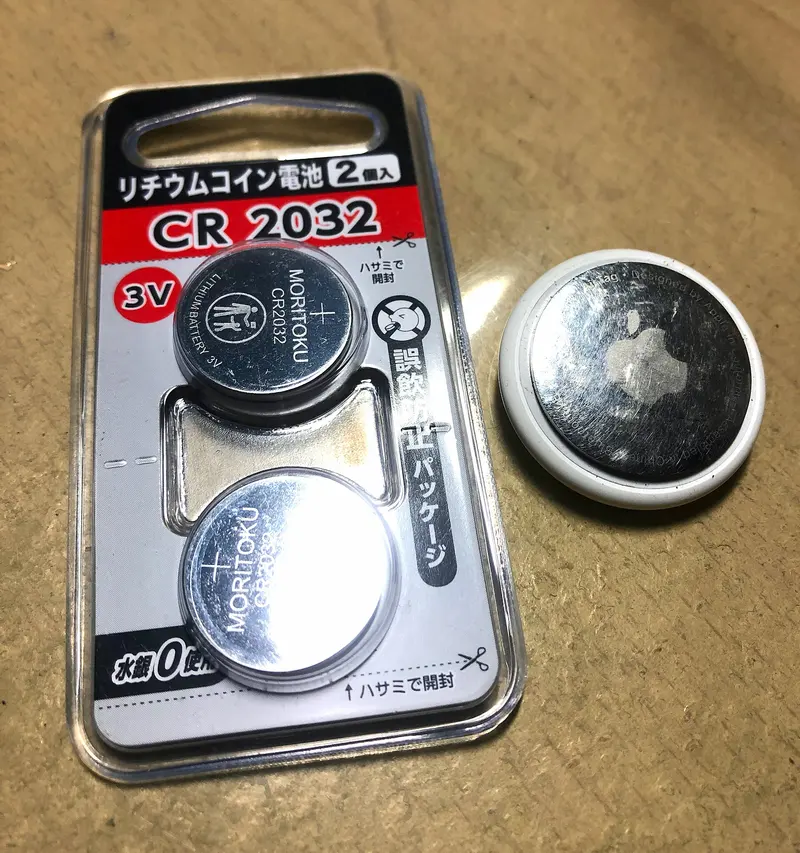
The battery is a CR2032 coin cell — see changing tracker batteries for which way up it goes.
Selling or giving away a Find Hub tracker
For tags on Google’s Find Hub network, open the tracker in Find Hub, go to its Settings and choose Remove from Find Hub. Google says removing a tag deletes the data linked to it, including the device it is paired with and your email address. Keep the tag nearby: if it is out of range or can’t connect by Bluetooth, you will see a “Couldn’t remove device” message.
To erase your data from the tag itself, Google says to factory reset it using the maker’s own instructions.
If you have shared the tag with other people, stop sharing first (see sharing a tracker).
Other trackers
Samsung, Tile, Chipolo and the other makers each have their own steps for removing a tracker from your account and resetting it. Look them up on the maker’s website before you hand it over — and if a tracker can join either Apple Find My or Google Find Hub (Chipolo POP, Pebblebee Clip 5 and others), remove it from whichever network it is on now.
Buying a used tracker
- Ask the seller to remove it from their account before they hand it over. Apple says the previous user must do this before you can use an AirTag. If they removed it while it was out of range, you will need to reset it yourself (steps above).
- Check it suits your phone. An AirTag needs an iPhone or iPad; the second-generation AirTag needs iOS 26.2.1 or later. A Galaxy SmartTag2 only works with Samsung Galaxy phones. Use the Which tracker? tool if you’re unsure.
- Expect to fit a new battery if it has a replaceable one — you won’t know how long the old one has left. Trackers with a sealed battery, such as Tile Slim, can’t be refreshed, so a used one may be near the end of its life.
- Accessories carry over. Apple says the second-generation AirTag is the same shape as the original and works with existing AirTag accessories — see accessories.
If a second-hand tracker is still linked to someone else, your phone may treat it as an unknown tracker travelling with you and warn you. See what to do about an unknown tracker alert.
Sources
- Apple iPhone User Guide — remove an AirTag or other item from Find My
- Apple Support — how to reset your AirTag
- Apple Support — use AirTag and Find My to keep track of your personal items
- Apple Newsroom (UK), 26 January 2026 — new AirTag
- Android Help — share and manage devices with Find Hub (removing a tag, factory reset)
- Apple Support — alerts about AirTag and other items
This guide is general information, not legal or safety advice for your situation. If you are in danger, call 999.